Free work order generator for contractors
Put the job details and work instructions in a work order so your crew knows what to complete. Print a copy for the jobsite, or download it as Word, Excel, or PDF.
Create a work order in three steps
Define the scope of work
Describe the construction, repair, or service work to be completed, including specific tasks and materials needed.
Add job site and customer details
Enter the customer information, job location, and work instructions so your crew has the details needed to complete the job.
Print or export the work order
Review the job description, tasks, and instructions. Print the work order, save it as a PDF, or download it as a Word or Excel file for your crew or project records.
What to include on a contractor work order
A work order describes what needs to be done. An estimate describes expected pricing, and an invoice requests payment. For a water heater replacement, the work order gives the person doing the work the job address, planned tasks, and information they’ll need on site.
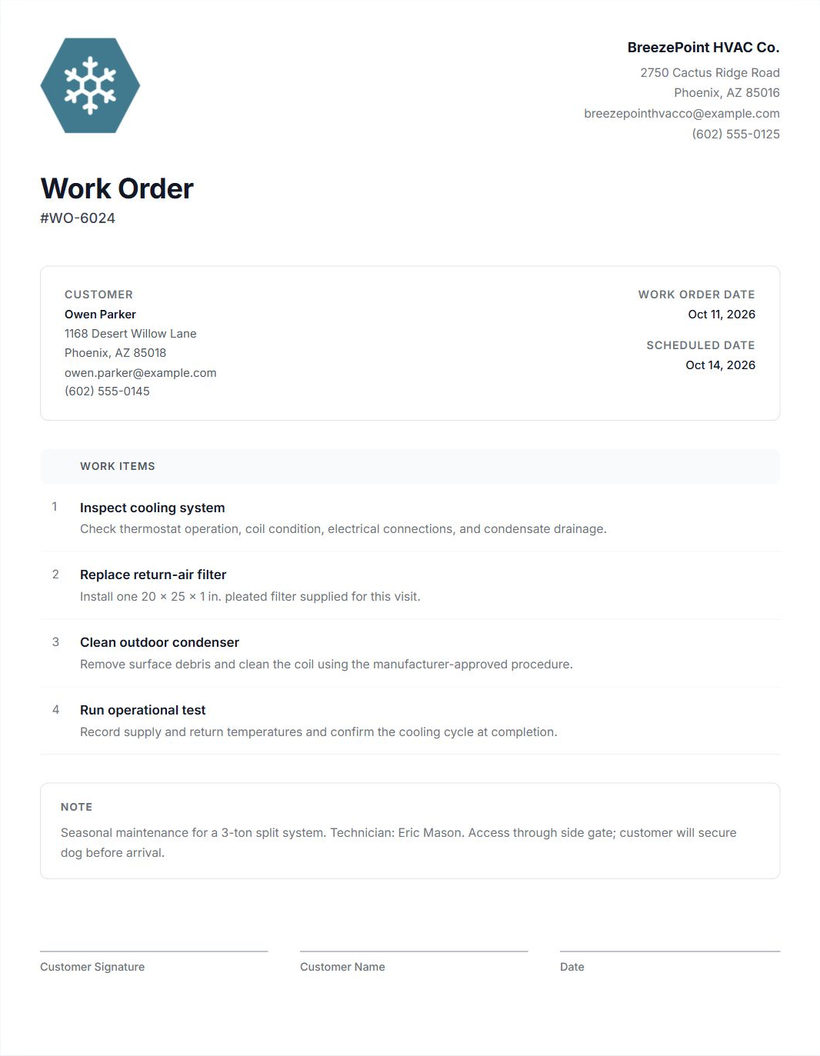
Contractor and customer information
Include your business name and contact details, plus the customer’s name and contact information. Use the full editor to complete these details so the person performing the work knows who to contact about access or a question on the scope.
Work order number and date
Give the document its own number, such as WO-1048, and include the date. Use that number when sharing an updated copy so the person receiving it can distinguish this job from another water heater replacement.
Scheduled work date
Enter the planned date in the full editor and confirm it with the customer and the person performing the work. The date is information on the document. The free generator doesn’t schedule appointments or assign workers. To schedule visits and assign crews inside Cinderblock, use job and appointment scheduling.
Job location or address
Check the address before sharing the document. If the customer’s mailing address differs from the work location, put the job address in the notes and label it clearly. Include useful location details, such as which entrance leads to the utility room.
Description of the work
State the scope in terms the person doing the job can use. “Replace the agreed water heater in the utility room” is more useful than “Plumbing work.” Add the selected equipment details in the description, and identify any work that needs a separate decision before proceeding.
Specific work items and instructions
Break the work into named items, then add detailed descriptions in the full editor. Use the construction task list generator for a separate checklist of smaller steps. Include the agreed equipment, materials to bring, and what should be checked or recorded on completion. The miniature collects up to three work-item names; it doesn’t collect these descriptions.
Relevant notes
Use the notes field for information that applies to the whole visit: access arrangements, the site contact, preparation discussed with the customer, and follow-up questions. There are no dedicated equipment-packing or completion-status fields, so record those details in descriptions or notes.
Optional printed signature line
The full editor can include a printed signature line if you want a place for a handwritten signature. Arrange signing separately and keep the signed document with your records. The generator doesn’t collect electronic signatures or run an approval process.
How to create and send a work order
- Enter work items in the embedded generator. Add up to three short names that describe the planned work.
- Continue to the full editor. Your item names carry over, and you can complete the other document fields there.
- Add customer details and the scheduled date. Enter your company information, the work order number and date, and the customer’s details. Check the work address and record it in notes if it differs from the customer address.
- Add descriptions and relevant instructions. Describe each work item and use notes for materials or equipment to bring, access arrangements, and details that apply to the visit.
- Review the document. Check the address, date, scope, and instructions with the current job information. Include the optional printed signature line if it’s useful for your process.
- Print or export your work order. In the full work order preview, select Print to print a copy or save a PDF through your browser, or open More document actions to download a Word or Excel file.
- Share it with the person performing the work. Send the PDF using an external email or messaging application, or hand them a printed copy. The free generator doesn’t dispatch work, create employee accounts, assign workers, or provide integrated messaging.
Confirm that the person receiving the work order has the current copy and understands any open questions. After the visit, record labor hours on a contractor timesheet. Record completed work and follow-up details in the saved document or your job records, then export an updated copy if needed. Keep the PDF as well as the editable browser-local document.
Common work order mistakes
Vague work descriptions
Replace “Water heater job” with the specific work and location. Add the agreed equipment details and explain whether removal of the old unit is included so the person doing the work can prepare for the visit.
Missing job details
Check the customer name, work address, contact details, and scheduled date. A correct customer name doesn’t help much if the document sends someone to the customer’s mailing address instead of the property needing work.
Unclear scope
Describe what’s included and which questions need a separate decision. If the visit is only for the agreed replacement, don’t leave wording that could be read as permission to carry out any additional plumbing work.
For a customer-requested addition, use the free change order generator to describe the extra work and price adjustment for review. Record the customer’s agreement separately before changing the crew’s instructions.
Missing access instructions
Record which entrance to use, who will provide access, and any preparation agreed with the customer. Confirm those arrangements before the visit rather than assuming someone will be home.
Forgetting materials or equipment requirements
Put the agreed model and the materials or equipment to bring in the item description or notes. Check them against the job information before leaving, especially when similar equipment is stored for several jobs.
Failing to document completed work
Record what was completed, any remaining issue, and whether follow-up is needed. A work order written before the visit only describes the plan; update your records after the work instead of treating that plan as proof of completion.
For a blank form to fill out by hand, use the contractor work order template. Customize the company details and print the empty form before writing in the job details.
Keep the work organized beyond the document
A work order helps explain what needs to be done. But when you're managing several jobs and crews, you also need a way to keep track of schedules, assignments, and progress.
Cinderblock lets you schedule jobs and appointments, assign crews, manage tasks and subtasks, and keep notes and files connected to each job.
Frequently asked questions
More free tools for contractors
Purchase order generator
List the materials to order before the field work begins.
Explore purchase order generatorTask list generator
Prepare a separate checklist of tasks to work through.
Explore task list generatorInvoice generator
Request payment with an itemized invoice after the work.
Explore invoice generatorTimesheet generator
Record a worker’s dated hours separately from completed tasks.
Explore timesheet generator