Free construction task list generator
Turn the work ahead into a construction checklist for your crew. Check off completed tasks, then print the list or download it as Word, Excel, or PDF.
Create a contractor task list in three steps
Build your construction checklist
List the tasks, work items, and project activities that need to be completed, with clear descriptions of each.
Add project information
Include your business details and relevant job information so the task list is organized and easy for your crew to follow.
Print or export your task list
Review the checklist, then print it, save it as a PDF, or download it as a Word or Excel file your crew can reference on the job.
What to include in a construction task list
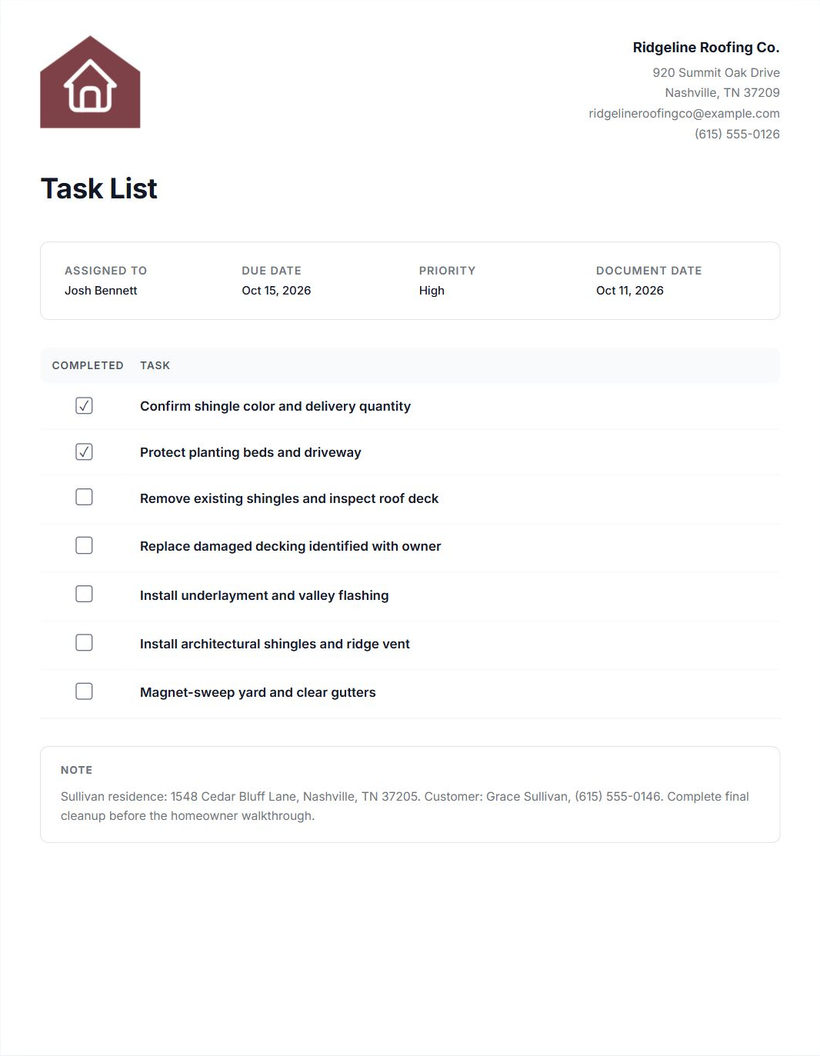
A task list gives the crew individual items to check as work progresses. A contractor work order describes the job or service to be performed; the checklist makes smaller steps visible, from preparing the work area to removing the last packaging.
Job or project details
Identify the job so a printed list doesn’t get mixed up with another project. The full editor has a shared Note field for a project name, location, reference, or instructions. It doesn’t have a separate job-name field.
Specific tasks and clear wording
Write each task as an action someone can recognize as finished. “Bathroom work” is too broad. “Remove existing fixtures” and “Complete final cleanup and inspection” are separate items with different completion points.
Use task names for clear descriptions. Add instructions that apply across the list in the full editor’s Note field. The miniature accepts task names and completion checkboxes; it doesn’t include separate task-description fields.
Completion status
Check items that are complete and leave unfinished items unchecked. Record hours separately with the contractor timesheet generator. If part of a task is still open, keep it incomplete or split it into smaller tasks in the full editor. A checked box should mean the stated item is done.
Responsibility, due date, and priority
The full editor has Assigned to, Due date, and Priority fields for the whole list. Use them to identify the person or crew responsible and the date you’re planning toward. These are document details you enter, rather than notifications or automatic assignments to employee accounts.
If different items have different owners, clarify those responsibilities in the task names or shared note. Don’t assume a list-level assignment communicates who is responsible for each step.
How to create and use a task list
- Enter task names. Add up to five names in the miniature. Make each item specific enough to check off separately.
- Mark completed items. Check work that’s already finished and leave open items unchecked.
- Continue to the full editor. Your task names and completion status carry over into an initially unsaved draft. Use Add task if you need more items.
- Add project details and instructions. Identify the job in the Note field. Add a list-level assignment, due date, and priority where useful.
- Review the checklist. Check task wording, responsibility, instructions, and completion status against the current work.
- Print or export your task list. In the full document preview, select Print to print a copy or save a PDF through your browser, or open More document actions to download a Word or Excel file.
- Share the current copy with the crew. Hand over the printed list or send the PDF through your preferred email or messaging application.
- Update the saved document as work progresses. Reopen it in the same browser on the same device, change the completion status, and export a fresh copy when needed.
A shared PDF is a copy of the list at the time you exported it. It doesn’t update when you edit the browser-saved document, and the free generator doesn’t synchronize tasks across employees or devices. To assign work and set task due dates inside Cinderblock, use tasks and subtasks.
Common task list mistakes
Using vague task names
Replace “Finish bathroom” with separate items for the remaining work. A crew member should be able to tell what needs doing and when each item is complete.
Combining too many activities
An item such as “Remove fixtures, prepare surfaces, and install replacements” stays partly open for a long time. Split the activities so finished work and remaining work are visible.
Leaving out preparation or cleanup
Include the smaller steps around the main installation. Preparation and final cleanup are easy to overlook when the list contains only the major work.
Leaving responsibility unclear
Name the responsible person or crew for the list. If ownership varies by item, make that clear in the names or note and confirm it with the crew.
Not updating completion status
Review the checklist as work progresses. A task left unchecked after completion can lead someone to repeat work; a task checked too early can hide something still open.
Working from an outdated printout
When you revise the browser-saved list, print or share the new copy and tell the crew which version to use. Earlier paper copies and PDFs don’t update automatically.
For a blank form to fill out by hand, use the contractor task list template. Customize the company details and print the empty form before writing in the tasks.
Keep tasks connected to the job
A printable task list helps your crew stay organized for one job. Updating paper checklists and sharing changes takes more work when you're managing several jobs.
With Cinderblock, you can create tasks and subtasks, assign work to your team, and keep tasks connected to the job alongside schedules, notes, and files.
Frequently asked questions
More free tools for contractors
Work order generator
Describe the job or service and the instructions for carrying it out.
Explore work order generatorTimesheet generator
Record a worker's dated hours and calculate an optional labor amount.
Explore timesheet generatorTask list template
Prepare a blank checklist to print and fill out by hand.
Explore task list template