Free timesheet generator for contractors
Record a worker's hours by date and total their labor time for the job. Add start and end times and breaks when completing the timesheet. Download it as Word, Excel, or PDF.
Create a contractor timesheet in three steps
Record employee work hours
Enter the dates and hours worked, along with the construction jobs or activities associated with those hours.
Complete the timesheet details
Add your business and employee information, then complete the time entries to keep a clear record of labor hours.
Review and export your timesheet
Check the recorded hours, then print the timesheet, save it as a PDF, or download it as a Word or Excel file for payroll preparation, labor cost records, or job documentation.
What to include on a contractor timesheet
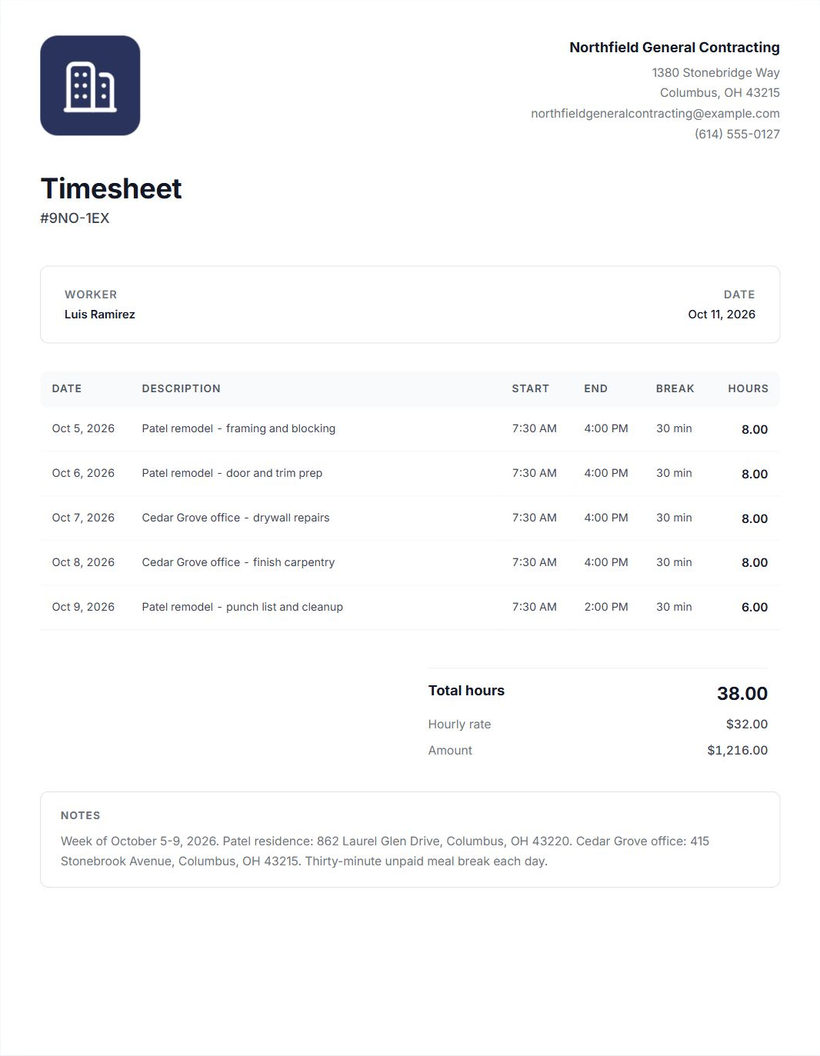
A useful timesheet explains whose hours you recorded, when they worked, and what they did. For a remodel with several trades on site, “Monday: 8 hours” is harder to match to the job than “October 12: kitchen cabinet installation, 8 hours.”
Worker name and work dates
Keep one worker’s hours together. Enter their name and a date for each entry, including the month and year. If the worker moves between jobs, identify the project in the work description or notes so the hours can be reviewed against the right job.
Hours, start and end times, and breaks
In the miniature, enter the hours worked for each date manually. In the full editor, you can instead record start and end times and break minutes, including a shift that ends the next day. Use the break field for time you intend to deduct from the worked hours. Check the resulting hours before saving.
Keep your entries consistent: 7 hours and 30 minutes is 7.5 decimal hours, not 7.30. Don’t deduct a break a second time from hours that already exclude it.
Description of the work
Use the full editor’s description field to name the work performed, such as cabinet installation, door trim, or punch-list corrections. Keep a construction task list alongside the time record to distinguish completed work from hours spent. Add a job reference in the description or notes when it helps distinguish one remodel from another.
Hourly rate, total hours, and amount
The hourly rate is optional. Use the labor cost calculator when you need to include an employer burden allowance. When you enter an hourly rate, the generator multiplies total hours by the rate to show an amount. Review both the daily entries and the total. Check billable hours before adding them to a contractor invoice. This calculation can help illustrate labor cost; it isn’t payroll processing or a determination of what an employee must be paid.
How to create and save a timesheet
- Enter the worker’s name. Keep each worker’s record separate.
- Add work dates and hours. The miniature accepts up to three dated entries with manually entered hours. Enter decimal hours after any applicable unpaid break deduction.
- Add an hourly rate if needed. Leave it blank when you only need an hours record. When you enter a rate, check the calculated amount.
- Continue to the full editor. Your entries carry over into an initially unsaved draft. Add more rows if you need additional work dates.
- Complete the time details. Add work descriptions, start and end times, and break minutes where needed. Review the resulting hours, especially when a shift crosses midnight.
- Review the totals. Check the worker, dates, daily hours, break deductions, optional rate, and calculated amount against your records.
- Print or export your timesheet. In the full document preview, select Print to print a copy or save a PDF through your browser, or open More document actions to download a Word or Excel file. Share the PDF using your preferred email or messaging application.
The free generator doesn’t automatically submit the document to a manager or payroll system. Keep an exported copy with your job records. Saved documents remain in the same browser on the same device.
For employee clock-in and clock-out activity, use Cinderblock’s time tracking on the Build plan.
Common timesheet mistakes
Leaving work dates blank
A total without dates is difficult to match to a job’s daily record. Add a date to every entry and check the month and year before exporting.
Deducting a break twice
If you entered worked hours manually after a break deduction, don’t subtract the same break again. When using start and end times, check the break minutes and resulting hours together.
Mixing minutes and decimal hours
Use 7.5 for seven hours and thirty minutes. Treating thirty minutes as 0.30 hours changes the total and any rate-based amount.
Omitting the work description
“Carpentry” gives less context than “Fit kitchen cabinet trim.” Use a specific description and a project reference when the worker visits several jobs.
Skipping the total review
A single mistyped entry can affect the whole sheet. Add up the daily hours and check the optional rate before printing or sharing.
Combining different workers’ hours
Use separate timesheets for different people. One worker name with several people’s hours makes it harder to check who performed the work.
For a blank form to fill out by hand, use the contractor timesheet template. Customize the company details and print the empty form before writing in the time entries.
Track time without rebuilding timesheets
A free timesheet works when you need to record hours for one worker. Collecting timesheets and matching labor hours to jobs takes more work as your crew grows.
With Cinderblock's Build plan, employees can track time through clock-in and clock-out activity. Labor costs become part of job costing, helping you see what each job costs to complete.
Frequently asked questions
More free tools for contractors
Task list generator
List the work your crew needs to complete and check off finished items.
Explore task list generatorWork order generator
Write down the job details and instructions before the work starts.
Explore work order generatorInvoice generator
Itemize completed work when you're ready to bill the customer.
Explore invoice generatorReceipt generator
Document a customer payment you have confirmed.
Explore receipt generator