Free invoice generator for contractors
Bill for completed work with an itemized invoice showing labor, materials, quantities, and prices. Download the finished invoice as Word, Excel, or PDF.
Create a contractor invoice in three steps
Itemize labor and materials
Add completed work, labor charges, materials, quantities, and unit prices. Give customers a clear breakdown of what they’re being billed for. No logo? Make one free with the logo maker.
Add invoice and payment details
Enter your business and customer information, invoice number, due date, and payment terms. Add your company logo for a professional invoice.
Review and save your invoice
Check the line items, taxes, and invoice total. Print your contractor invoice, save it as a PDF, or download it as a Word or Excel file, ready to send to your customer.
What to include on a contractor invoice
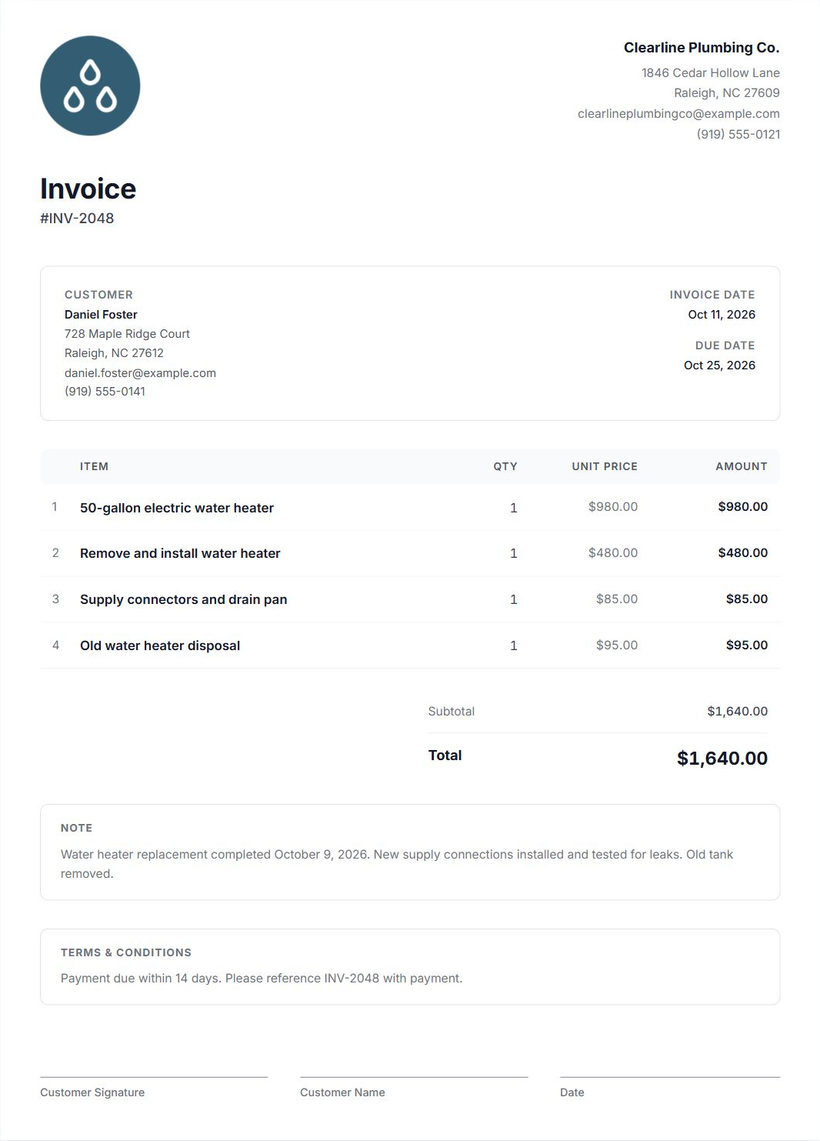
An invoice should let the customer identify the job, check the charges, and know when payment is due. Use the details from the completed work rather than copying an earlier contractor estimate without reviewing it.
Contractor and customer information
Include your business name and contact details, along with the customer’s name and billing information. If the work address differs from the billing address, identify the job location in your notes. For a rental-property repair, that helps the owner see which property the charge belongs to.
Invoice number and dates
Give each invoice a number you can refer to in a payment or follow-up message. Enter the invoice date and the agreed due date. For example, you might label a bathroom repair invoice INV-1042 and use that number when asking about payment.
Labor and material line items
Describe what you did and what you supplied. “Replace kitchen faucet and reconnect supply lines” tells the customer more than “Plumbing work.” Separate installation labor from the faucet and other materials when that reflects how you priced the job.
Quantities and rates
Show the unit you’re charging for. Six hours at $85 per hour is a $510 labor charge; two supply lines at $18 each adds $36. Check billed hours against your contractor timesheet. Check that quantities match the work completed and that unit prices match what you agreed with the customer.
Taxes and discounts
Add taxes or discounts where applicable to your job. Use the rates and treatment you’ve confirmed for your business, then review how each adjustment changes the total. The generator doesn’t determine which tax rules apply to your work.
Payment terms and due dates
State the agreed payment terms and how the customer can pay you. If payment is due on a particular date, show the date clearly. Make sure your terms and due date agree, rather than leaving “due on receipt” beside a later deadline.
For jobs billed in stages, Cinderblock’s progress billing keeps incremental invoices connected to the estimate and job.
Notes describing the completed work
Use a short note for details that don’t fit a line item: “Replaced leaking faucet, fitted new supply lines, and checked connections for leaks.” Mention the work location or service date if the customer has several jobs underway.
How to create and send an invoice
- Enter items in the free generator. Add up to five item names, quantities, and unit prices in the miniature above.
- Continue to the full editor. Your items carry over in an initially unsaved draft. Complete your company and customer information, invoice number, dates, payment terms, and any other fields needed for this job.
- Review the invoice. Check the customer, completed work, quantities, unit prices, adjustments, and total against your job records.
- Print or export your invoice. In the full invoice preview, select Print to print a copy or save a PDF through your browser, or open More document actions to download a Word or Excel file.
- Send the PDF yourself. Attach it in your preferred email or messaging application. Include the invoice number and due date in your message so the customer can find them without opening the attachment.
Need customers to pay online? With Cinderblock’s online payments, you can send invoices that customers can pay by card or ACH.
Saved documents stay in this browser on this device. They don’t sync across devices, and clearing browser data may remove them. Keep a copy of the PDF with your job records.
Common invoicing mistakes
Leaving out descriptions of the work
Replace vague lines such as “Repairs: $255” with the task and where it was done. For hourly work, show the hours and rate so the customer can check the charge.
Using incorrect quantities or prices
Compare the invoice with your work notes and material records before sending it. Check for duplicate line items and confirm that a quantity of two hasn’t been entered as twenty. Review any changes from the original estimate.
Leaving payment terms unclear
Enter the agreed due date and payment instructions. Check that a customer reading only the invoice can tell when and how to pay you.
Missing customer information
Check the billing name and details in the full editor. When sending the PDF, confirm the recipient separately, especially if a property manager or accounts-payable contact handles payment.
Forgetting to follow up on unpaid invoices
Keep a record of what you sent, when it’s due, and whether it’s been paid. Document a confirmed payment with the contractor receipt generator. If an invoice passes its due date, send a short follow-up with the invoice number, outstanding amount, and another copy of the PDF. Ask whether the customer received it and whether anything needs clarification.
If follow-up turns into a dispute, read what to do when a customer won’t pay.
For a blank form to fill out by hand, use the contractor invoice template. Customize the company details and print the empty form before writing in the job details.
Need to manage more than one invoice?
A free invoice works when you need to bill a customer. But as jobs pile up, keeping track of invoices, payments, and customer information takes more work.
With Cinderblock, you can create invoices as part of the job, accept card and ACH payments, and keep customer records connected to your work. You can also handle progress and partial billing when a job requires more than one payment.
Frequently asked questions
More free tools for contractors
Contractor estimate generator
Itemize proposed work and prices before the job starts.
Explore estimate generatorReceipt generator
Record a payment you've received for completed work.
Explore receipt generatorChange order generator
Write down a change to the agreed scope and its price using the standalone free tool.
Explore change order generator