Free change order generator for contractors
Document changes to the agreed work and pricing, including additions and credits. Prepare a change order for your customer to review before the changed work begins. Download it as Word, Excel, or PDF.
Create a change order in three steps
Document the scope change
Describe additional work, removed items, or revisions to the original construction scope so the changes are clearly recorded. No logo? Make one free with the logo maker.
Detail cost and schedule changes
Add contractor and customer information, then document any adjustments to project pricing, materials, or completion dates.
Review and share the change order
Check the revised scope, costs, and terms. Print the change order, save it as a PDF, or download it as a Word or Excel file to share with your customer.
What to include in a construction change order
When a customer asks for different work after the original contractor estimate, write down what changes and what stays in the original scope. “Add electrical work” leaves too much open. “Add two kitchen outlets at the marked locations and remove the planned pendant light installation” gives both sides something specific to review.
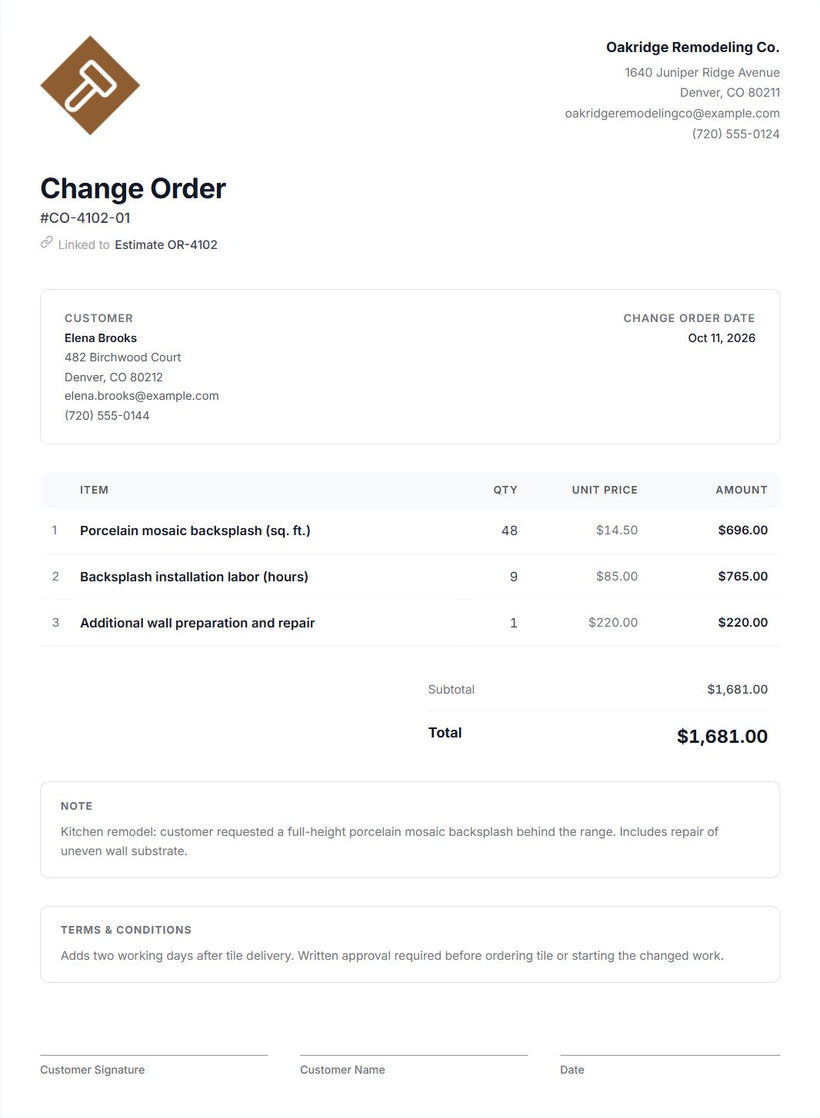
Contractor and customer information
Include your business name and contact details, the customer’s name, and enough information to identify the job. If you’re working at more than one property for the same customer, include the work address in your notes.
Change order number and date
Give the document its own number and date. For example, CO-002 tells the customer which change you’re discussing when you send a revised copy or follow up on a question.
Reference to the original estimate or agreement
Identify the estimate number or agreement being changed. Add its date or the relevant scope description when that helps distinguish it from other versions. The estimate reference in the miniature and full editor is informational; it doesn’t connect the two records or update the original document.
Description of the requested change
State what the customer asked for, where it will happen, and how it differs from the original plan. For a renovation, describe the outlet locations and the fixture installation being removed, rather than relying on a conversation at the jobsite.
Added and removed work
List the new work separately from work that’s no longer being done. Specify whether the added price includes labor, materials, or both. If the homeowner will supply the fixtures, say so instead of including them in a material charge. List materials you need to order with the contractor purchase order generator.
Price adjustments and credits
Show the quantity and price for each addition. Use a negative price for a credit, with a description such as “Credit: omit pendant light installation from estimate EST-1042.” Check that the credit reduces the net adjustment rather than adding another charge.
Price the added work from its labor, material, and overhead costs in the job pricing calculator, then record any credits separately.
Revised totals
Keep the net change amount separate from the original project price. If you’re showing a revised project total, calculate it separately using the original amount and all agreed adjustments. The generator’s change order total represents this document’s adjustment; it doesn’t automatically recalculate the full contract value.
Notes and relevant terms
Record details that affect how you’ll do the changed work, such as customer-supplied materials or a scheduling change to discuss. Include the terms relevant to the change and make clear which details still need agreement. Creating or sending the document doesn’t itself obtain customer approval or modify an existing contract.
How to create and send a change order
- Describe the changes in the free generator. Enter up to three changes in the miniature, with quantities and prices. Use a negative price for a credit on removed work. Add an estimate reference if you have one.
- Continue to the full editor. Your entries carry over into an initially unsaved draft. Complete the document beyond the miniature’s fields.
- Add the customer, references, and relevant details. Enter your company information, the change order number and date, and any notes or terms needed to explain the change. Review the original estimate reference.
- Review the document and pricing. Check descriptions, quantities, additions, and credits. Confirm that the total is the change amount, rather than the price of the whole project.
- Print or export your change order. In the full change order preview, select Print to print a copy or save a PDF through your browser, or open More document actions to download a Word or Excel file.
- Send it to the customer for review. Attach the PDF in your preferred email or messaging application. Ask the customer to check both the changed scope and the price adjustment.
- Record any agreement separately. Use the approval process appropriate for your job and keep that record with the document. The free generator doesn’t collect electronic signatures, automate approvals, or track changes to an existing contract.
If you haven’t heard back, follow up with the change order number and another copy of the PDF. Clarify any open questions before starting the changed work. Saved documents remain in this browser on this device; keep an exported PDF with your job records as well. If you use Cinderblock, upload the exported copy to job files so your team can find it with the rest of the job documents.
Common change order mistakes
Describing additional work too vaguely
Replace “Extra electrical: $380” with the work and location. Name the two outlets being added and distinguish installation labor from materials so the customer can see what the added price covers.
Missing credits for removed items
Check the original estimate for work you’re no longer doing. List any agreed credit explicitly, with a negative price and a description tied to the removed item. Don’t leave the customer to guess whether the new price already includes it.
Leaving pricing unclear
Show quantities, unit prices, and the net adjustment. Check whether materials are included, supplied by the customer, or charged separately. Check later billing in your contractor invoice against the agreed change. Review each negative line to make sure it reduces the amount.
Failing to reference the original scope
Include the estimate number and describe the original item being changed. If there are several versions, add the date or other identifying details so everyone reviews the same starting point.
Starting changed work without documenting agreement
Send the description and pricing for review before you begin the extra work. Record what was agreed and keep it with the job information. A document you’ve created or sent isn’t a record of customer approval by itself.
Confusing the change amount with the project price
Label the change total as an adjustment. Keep the change amount separate from the price of the whole project. If you show the revised project total separately, check it against the original price and any other agreed changes.
For a blank form to fill out by hand, use the contractor change order template. Customize the company details and print the empty form before writing in the job details.
Keep the rest of the job organized
A change order documents what's different from the original plan. But you still need to keep track of the work happening around it.
Cinderblock helps you organize estimates, job notes, files, tasks, and scheduling in one place. On the Build plan, you can also track job costs as work progresses.
Frequently asked questions
More free tools for contractors
Contractor estimate generator
Describe the original work and itemize its price before the job starts.
Explore estimate generatorInvoice generator
Prepare an itemized invoice when it's time to bill for the work.
Explore invoice generatorPurchase order generator
List the materials you're ordering from a vendor for the job.
Explore purchase order generator