Free purchase order generator for contractors
List the materials you need for the job, with quantities and prices. Create a purchase order to send to your supplier. Download it as Word, Excel, or PDF.
Create a purchase order in three steps
List materials and supplies
Itemize the construction materials, equipment, or supplies you're ordering. Include quantities and unit prices to establish the order total.
Add supplier and delivery details
Enter your business and vendor information, purchase order details, and delivery instructions so the supplier knows what to provide and where.
Review and send the order
Check the materials, quantities, and costs. Print the purchase order, save it as a PDF, or download it as a Word or Excel file to send to your supplier.
What to include on a contractor purchase order
A purchase order documents what you’re ordering from a vendor. An invoice requests payment for goods or services. When you’re buying tile for a renovation, the purchase order tells the supplier which tile, how much, and where you need it delivered. The supplier’s invoice is the payment request.
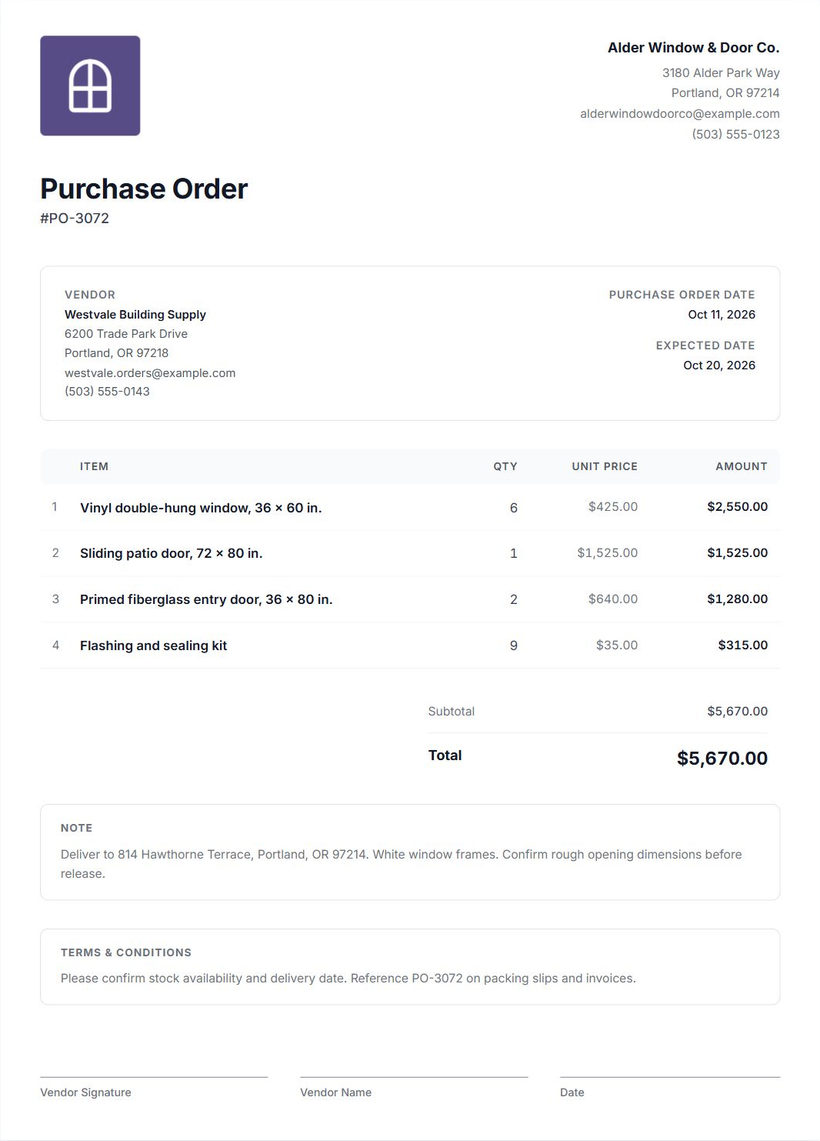
Contractor and vendor information
Include your business name and contact details, plus the vendor’s name and contact information. Use the branch or sales contact handling the order so questions about a tile finish or backordered fixture reach the right person.
Purchase order number and date
Give the order a number you can reference in conversations with the supplier, such as PO-1048. Include the date and identify the job in your notes, especially if you’re ordering similar materials for several renovations.
Expected delivery date
Enter the date you need the materials and confirm availability with the vendor. A date on a purchase order doesn’t reserve stock or confirm delivery. If tile must arrive before the installer starts, discuss that timing with the supplier before scheduling the work around it.
Materials or services being ordered
Describe each item precisely. Include the product name, size, finish, and vendor SKU when available. For services, describe the work being ordered, such as fabrication of a countertop to an approved drawing. “Bathroom supplies” doesn’t give the vendor enough information to fill the order.
Item descriptions and quantities
State the unit as well as the quantity: cartons of tile, bags of mortar, or individual fixtures. If one carton covers 10 square feet, distinguish 12 cartons from 12 square feet. Check your takeoff and any allowance for cuts before entering the order.
Unit prices and totals
Use the price for the unit you’re ordering. Multiply quantity by unit price and review each line total. Check prices against the vendor’s quote so a carton price doesn’t accidentally become a price per square foot. Include those material costs in the job pricing calculator, then compare pricing percentages with the markup vs. margin calculator.
Taxes and discounts, where applicable
Add applicable taxes or agreed discounts in the full editor and review their effect on the total. Confirm the amounts with the vendor rather than assuming every order uses the same rate. Include any agreed delivery charge so the document reflects what you’re expecting to pay.
Delivery instructions and terms
Add the delivery address, site contact, and practical instructions such as “Call before arrival; keep the driveway clear.” Record relevant terms and any details that still need confirmation. The generator creates a document; it doesn’t submit the order, manage inventory, or track delivery.
How to create and send a purchase order
- Enter items and quantities in the embedded generator. Add material or service names, quantities, and unit prices. The miniature accepts up to four items.
- Continue to the full editor. Your items carry over, and you can add further items and purchase order details there.
- Add vendor information and purchase order details. Complete your company details, vendor information, order number, date, expected delivery date, and relevant notes or terms.
- Review quantities, pricing, and delivery information. Check units against the vendor’s quote, confirm product details, and review taxes or discounts where applicable.
- Print or export your purchase order. In the full purchase order preview, select Print to print a copy or save a PDF through your browser, or open More document actions to download a Word or Excel file.
- Send the document to the vendor. Attach the PDF in an external email or messaging application. The free generator doesn’t provide integrated vendor delivery or purchasing automation.
Ask the vendor to confirm quantities, product availability, pricing, and the requested delivery date. If you revise the order, reference the purchase order number and explain which copy replaces the earlier one. Keep the exported PDF with your job records; the saved editable document stays in this browser on this device.
If you use Cinderblock, upload the exported PDF to job files so your team can find it with the other job documents.
Common purchase order mistakes
Incomplete material descriptions
“Gray tile” can refer to several products. Include the size, finish, packaging, and SKU when available. For a service order, attach or reference the drawing or specification the vendor needs to understand the work.
Incorrect quantities or units
Check whether the supplier sells by carton, sheet, bag, or individual piece. For tile sold in cartons covering 10 square feet each, ordering 12 cartons gets 120 square feet of tile. Ordering 12 square feet would leave the job short.
Missing delivery dates
Enter the expected delivery date and confirm it with the vendor. Don’t assume the order date tells the supplier when the materials need to reach the site.
Unclear prices
Check the unit price against the quote and review the calculated totals. Record agreed discounts and any delivery charge, then check whether the final amount matches what you discussed with the supplier.
Missing vendor information
Name the vendor and include the contact handling the order. If the supplier has several branches, make clear which branch you’ve spoken with so the order doesn’t go to the wrong location.
Not checking the order against the job
Compare the order with the current measurements, selections, and scope before sending it. Check that the tile finish is the one the homeowner selected and that revised dimensions haven’t changed the quantity you need. Review any agreed change order before ordering materials for added work.
For a blank form to fill out by hand, use the contractor purchase order template. Customize the company details and print the empty form before writing in the job details.
Keep purchase orders connected to your jobs
A free purchase order helps you document what you're buying. But when you're ordering materials for multiple jobs, it's useful to keep those purchases connected to the work.
With Cinderblock's Build plan, you can create purchase orders linked to jobs and vendors, track material costs, and use those costs as part of job costing.
Frequently asked questions
More free tools for contractors
Purchase order template
Prepare a blank supplier order to print and fill out by hand.
Explore purchase order templateInvoice generator
Prepare a payment request for the work you've completed.
Explore invoice generatorChange order generator
Document added or removed work and its price adjustment.
Explore change order generatorWork order generator
Describe the job and instructions for the person doing the work.
Explore work order generator